

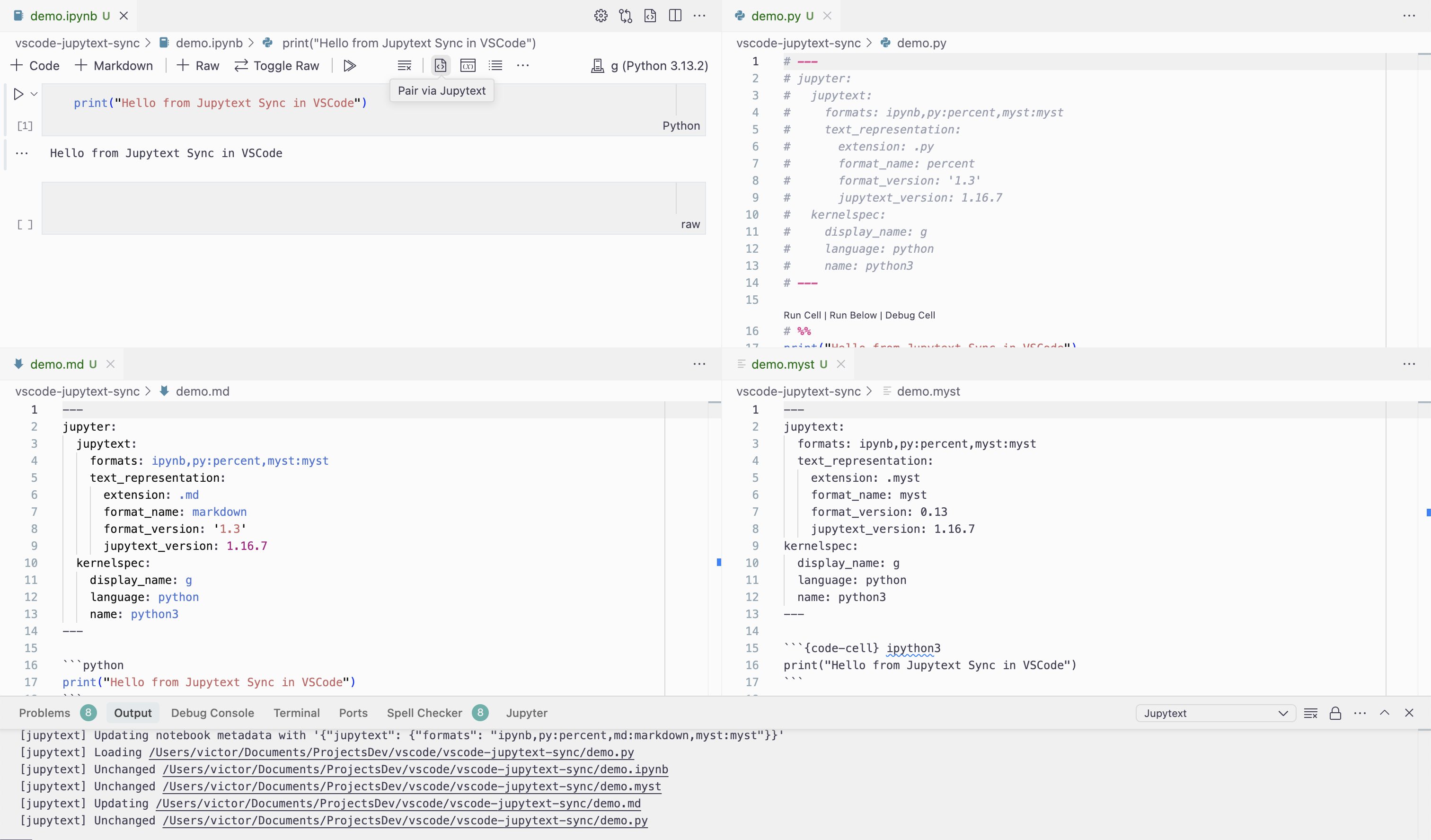
This extension integrates jupytext's pairing and synchronization capabilities into OSS Code like IDEs (VSCode, VSCodium, etc.), enabling automatic syncing between notebooks and their version-control-friendly text formats (.py, .md, etc.).
You can install this extension by searching for "jupytext-sync" in the Extensions Marketplace within your VSCode-like IDE.
The extension is available on both Microsoft VSCode Marketplace and on the Open VSX Registry in case you are using an alternative VSCode-based IDE like VSCodium.
Alternatively, you can install it directly by downloading the .vsix file from the release page on the GitHub and drag-and-drop it in your VSCode-based IDE. This has the downside that you will not be notified about available updates.
The extension activates when VS Code has finished starting up (onStartupFinished), registering its commands and editor integration immediately. Python and Jupytext discovery is deferred until the first Jupytext command or relevant automatic sync event.
- Python: You need a Python installation.
- Jupytext: The
jupytextPython package must be installed in the Python environment used by the extension. - VS Code Microsoft Python Extension (Recommended): For the best experience with automatic Python environment detection, it is recommended to have the Microsoft Python extension installed (open in VSCode / open on marketplace).
This extension solves several common annoyances and provides handy features for a better Jupyter Notebook experience in VSCode:
- Automatic Synchronization:
- Automatically syncs paired files (
.ipynband text-based formats like.py,.md) when you open, save, or close them. This ensures that your notebook and its text representation are always in sync. - Configuration options allow you to customize which events trigger a sync (on open, on save, on close for both text documents and notebook documents). See the
jupytextSync.syncDocumentssetting for details.
- Automatically syncs paired files (
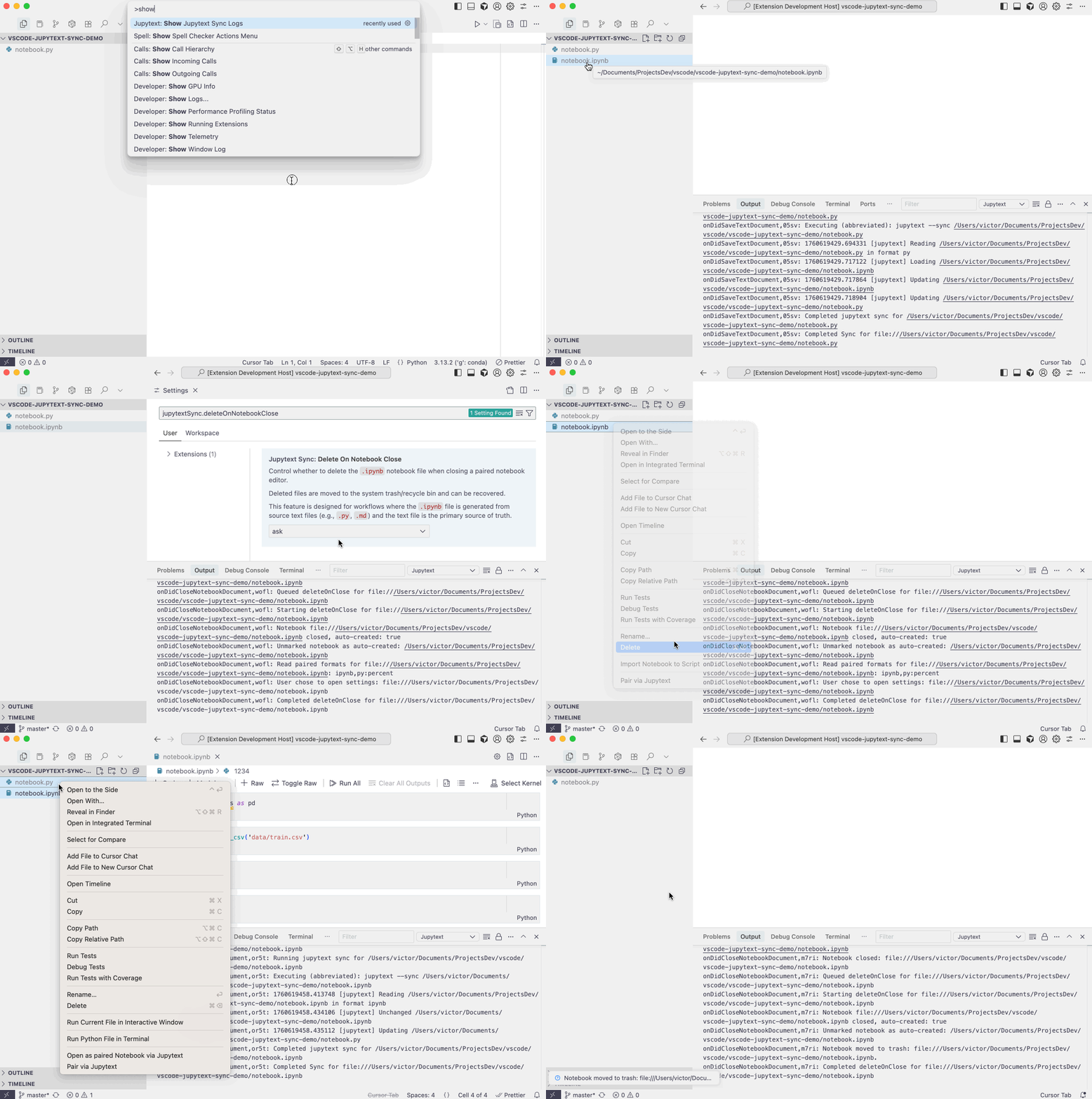
- Auto-cleanup: Optionally delete an
.ipynbfile created by the "Open paired Notebook via Jupytext" command when closing the notebook editor. Deleted files are moved to trash and can be recovered. This feature is opt-in. See thejupytextSync.deleteOnNotebookClosesetting for details. - Open Text Files as Notebooks:
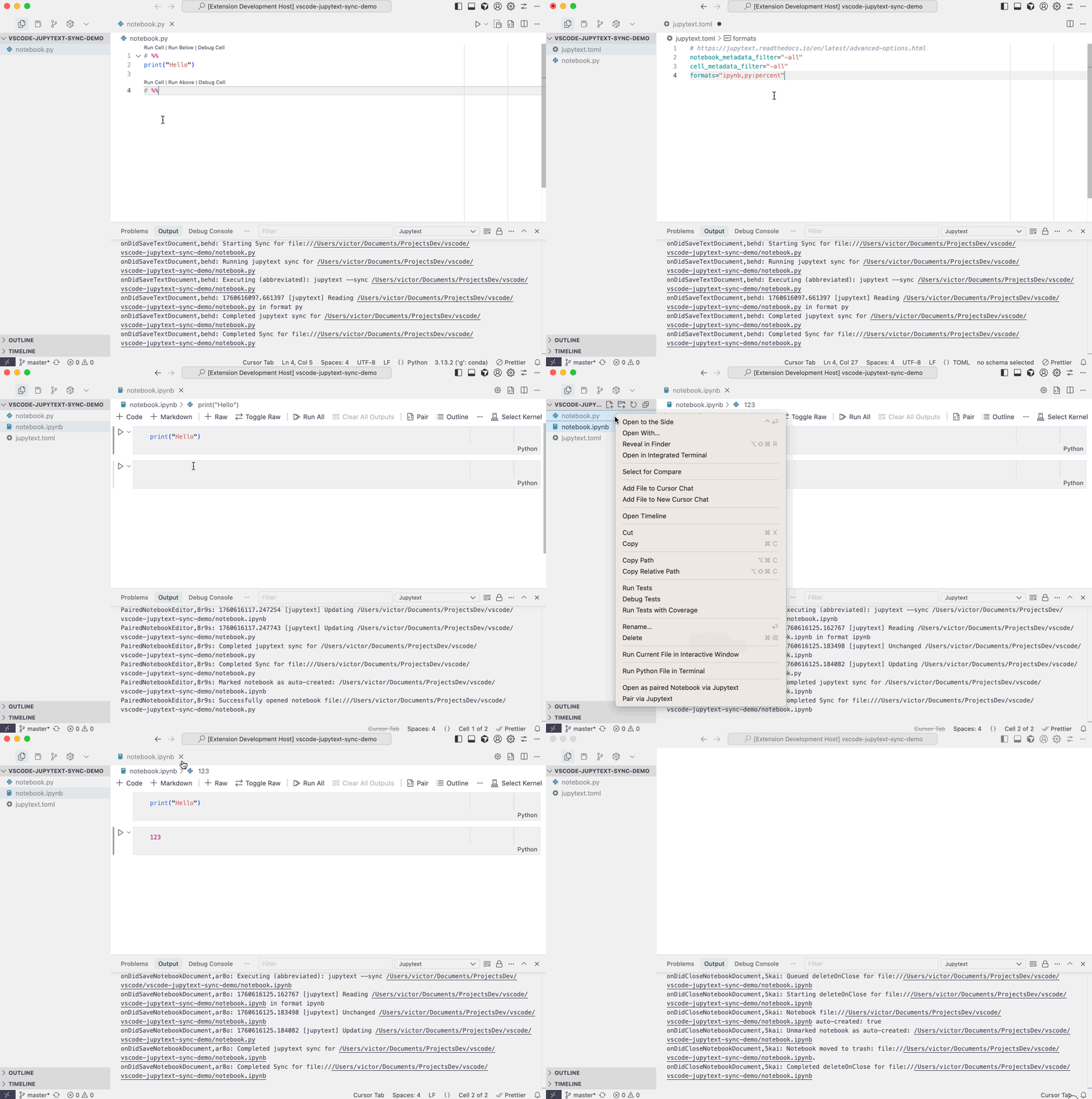
- Open Jupytext-compatible text files (e.g.,
.py,.mdwith Jupytext metadata) as notebooks using the "Open paired Notebook via Jupytext" command. A notebook file will be created and all your edits in it will be synced to the text file(s).
- Open Jupytext-compatible text files (e.g.,
- Persistent Cell Outputs: All files are saved to disk, meaning cell outputs are not lost when reopening a notebook, providing a more consistent experience.
- Convenient Pairing Command: The "Pair via Jupytext" command is accessible from multiple convenient locations:
- Command Palette (Ctrl+Shift+P or Cmd+Shift+P)
- File Explorer context menu (right-click on a file)
- Editor context menu (right-click inside the editor or on the editor tab)
- Icons in the editor and notebook toolbars.
- Broad File Support: Supports the file extensions configured in
jupytextSync.defaultFormats, provided they are compatible with the installed Jupytext version. - Raw Cells Support in Notebooks:
- Easily insert new raw cells via buttons in Notebook editor toolbar or keyboard shortcuts.
- Toggle cells to raw format and back to default code. Keyboard shortcuts available.
- Compact Notebook Layout: A command to apply a suggested VSCode settings for a more compact notebook layout, similar to traditional Jupyter interfaces.
- Python Interpreter Flexibility:
- Attempts are made to automatically discover Python executables that are able to invoke Jupytext. If the Microsoft Python extension is installed (open in VSCode / open on marketplace), its selected interpreter and other discovered environments (e.g.,
venv,conda) are considered. - Allows you to configure a custom Python executable path for
jupytextif needed (via thejupytextSync.pythonExecutablesetting). - You can use the "Jupytext: Locate Python and Jupytext" command or check the extension logs ("Jupytext: Show Logs" command) to see which Python environment is being used.
- Attempts are made to automatically discover Python executables that are able to invoke Jupytext. If the Microsoft Python extension is installed (open in VSCode / open on marketplace), its selected interpreter and other discovered environments (e.g.,
-
Pair your Notebook:
- Open an
.ipynbfile or a text file (e.g.,myscript.py,mymarkdown.md) that you want to use as a notebook. - Use the "Pair via Jupytext" command (accessible from the Command Palette, context menus, or toolbar icons).
- You'll be prompted to choose the Jupytext formats (e.g.,
ipynb,py:percent) unless disabled viajupytextSync.askFormats.onPairDocuments. The default suggestion is configurable per file extension usingjupytextSync.defaultFormats.
- Open an
-
Work in the Notebook:
- Use the "Open paired Notebook via Jupytext" command from a paired text file (e.g.,
.py,.md) to open its.ipynbnotebook. - The extension will automatically keep the paired files in sync upon saving (or other configured events via
jupytextSync.syncDocuments). - When you close the notebook, you can optionally have the
.ipynbfile automatically deleted (configurable viajupytextSync.deleteOnNotebookClose, which defaults to "never"), keeping your workspace clean while preserving your text file as the source of truth.
- Use the "Open paired Notebook via Jupytext" command from a paired text file (e.g.,
-
Version Control:
- Commit the text-based file (e.g.,
.py,.md) to your Git repository. This file is human-readable and diff-friendly. - Optionally, you can also commit the
.ipynbfile if you prefer to version control the outputs too. - If using auto-delete on close, consider adding
*.ipynbto your.gitignoreto avoid tracking generated notebook files.
- Commit the text-based file (e.g.,
-
Pre-commit Hook (Recommended): To ensure your paired files are always synchronized before committing, it's highly recommended to use the
jupytextpre-commit hook. This prevents accidental commits of unsynced files.Refer to the Jupytext documentation on pre-commit hooks for detailed configuration.
You can configure the extension's behavior via VSCode settings (search for jupytextSync in the Settings UI or edit your settings.json):
-
jupytextSync.pythonExecutable:- Description: The path to the Python executable used to invoke
jupytext. - Details: Jupytext Sync requires a Python executable with the
jupytextpackage installed.- Automatic discovery: If not specified, the extension attempts to find a suitable Python executable on first use. If the Microsoft Python extension is installed, its selected interpreter and other known environments are checked. Otherwise, it looks for
pythonandpython3in your system$PATH. The one providing the highestjupytextversion is preferred. Command-triggered failures display an actionable warning; failures from automatic editor events are logged without a notification. - Manual override: Specify an absolute path or a command (e.g.,
python3). If using a command, ensure your VS Code instance inherits the correct$PATH(launching from an activated terminal might be necessary for virtual environments). - Variable expansion: The setting supports variable expansion for portability:
${userHome}: Expands to the user's home directory${env:VAR_NAME}: Expands to the value of environment variableVAR_NAME${workspaceFolder}: Expands to the workspace folder path
- Automatic discovery: If not specified, the extension attempts to find a suitable Python executable on first use. If the Microsoft Python extension is installed, its selected interpreter and other known environments are checked. Otherwise, it looks for
- Tip: Use the "Jupytext: Show Logs" or "Jupytext: Locate Python and Jupytext" commands to verify which Python executable is being used.
- Default:
""(empty string, for automatic discovery)
- Description: The path to the Python executable used to invoke
-
jupytextSync.deleteOnNotebookClose:- Description: Control whether to delete the
.ipynbnotebook file when closing a paired notebook editor. - Options:
"never": Never delete the notebook file when closing."ask": Always ask for confirmation before deleting."yes": Always delete if the notebook has paired formats."if auto created": Only delete if the notebook was auto-created by this extension via "Open paired Notebook".
- Details: Deleted files are moved to the system trash/recycle bin and can be recovered. This feature is designed for workflows where the
.ipynbfile is generated from source text files (e.g.,.py,.md) and the text file is the primary source of truth. - Default:
"never"
- Description: Control whether to delete the
-
jupytextSync.syncDocuments:- Description: Controls on which events to attempt to
jupytext --syncpreviously paired documents. This applies even if pairing was done externally. - Properties:
onNotebookDocumentOpen(boolean): Sync when opening a notebook document.onNotebookDocumentSave(boolean): Sync when saving a notebook document. (Default:true)onNotebookDocumentClose(boolean): Sync when closing a notebook document.onTextDocumentOpen(boolean): Sync when opening a supported text document.onTextDocumentSave(boolean): Sync when saving a supported text document. (Default:true)onTextDocumentClose(boolean): Sync when closing a supported text document.
- Default: See individual property defaults above.
- Description: Controls on which events to attempt to
-
jupytextSync.askFormats:- Description: Controls whether to ask for pairing file formats before executing commands that may require pairing. If
false,jupytextSync.defaultFormatsare used. - Properties:
onOpenPairedNotebook(boolean): Ask for formats before opening a text document as a paired notebook. (Default:false)onPairDocuments(boolean): Ask for formats before pairing documents. (Default:true)
- Description: Controls whether to ask for pairing file formats before executing commands that may require pairing. If
-
jupytextSync.defaultFormats:- Description: Define default Jupytext pairing formats (e.g.,
ipynb,py:percent) used as suggestions or defaults. - Syntax: Uses Jupytext's
--set-formatsstring.${ext}can be used as a placeholder for the file extension (without the leading dot).defaultkey: An extension set to"default"in the configuration will inherit the format string from this key.- Subdirectories: Prefix with
dir_name//(e.g.,notebooks//ipynb,scripts//py:percent). Paths are relative to the source file's parent directory.
- Activation: Each extension key enables Jupytext Sync for that file extension, provided the installed Jupytext version supports it. For example:
".txt": "default". - Example Default Entry:
"default": "ipynb,${ext}:percent"
- Description: Define default Jupytext pairing formats (e.g.,
-
jupytextSync.setFormatsArgs:- Description: Customization for the command-line arguments of
jupytext --set-formatsinvocation. The order is preserved. - Examples:
["--set-formats"],["--set-formats", "--some-flag"] - Default:
["--set-formats"]
- Description: Customization for the command-line arguments of
-
jupytextSync.syncArgs:- Description: Customization for the command-line arguments of
jupytext --syncinvocation. The order is preserved. - Example:
["--sync", "--use-source-timestamp"] - Default:
["--sync"]
- Description: Customization for the command-line arguments of
-
jupytextSync.enabledMenus:- Description: Enable or disable Jupytext menus and buttons in various VS Code UI locations.
- Properties (all boolean, default
true):explorerContext: "Pair via Jupytext" in Explorer context menu.editorContext: "Pair via Jupytext" in Editor context menu.editorTitle: "Pair via Jupytext" button in Editor title bar.editorTitleContext: "Pair via Jupytext" in Editor title context menu.notebookToolbar: "Pair via Jupytext" button in Notebook toolbar.notebookToolbarInsertRaw: "Insert Raw Cell" button in Notebook toolbar.notebookToolbarToRaw: "Toggle Raw/Code Cell" button in Notebook toolbar.
To configure Jupytext's own behavior (e.g., metadata filters, default formats), consult the official Jupytext documentation on configuring Jupytext via pyproject.toml or jupytext.toml files.
For example, to avoid noisy metadata in your text notebooks, you might add this to your pyproject.toml:
[tool.jupytext]
notebook_metadata_filter = "-kernelspec,-jupytext.text_representation.jupytext_version"
cell_metadata_filter = "-all"This extension provides the following commands, accessible via the Command Palette (Ctrl+Shift+P or Cmd+Shift+P) under the "Jupytext" category:
Jupytext: Show Logs: Opens the output channel for Jupytext Sync, showing logs which can be helpful for troubleshooting, especially for Python executable discovery.Jupytext: Locate Python and Jupytext: Manually triggers Python and Jupytext discovery, showing detailed information about which Python executable and Jupytext version is being used. Useful for troubleshooting environment issues.Jupytext: Pair via Jupytext: Initiates the pairing process for the active file or a file selected from the Explorer. Prompts for Jupytext formats based onjupytextSync.askFormats.onPairDocumentsandjupytextSync.defaultFormats.Jupytext: Open paired Notebook via Jupytext: Opens the paired notebook (.ipynbfile) corresponding to the text file (e.g.,.py,.md) as a VS Code Notebook Editor. This is a key feature for working with text-based versions of notebooks. The text file must be first paired to a notebook (Pair via Jupytextor via Jupytext config files).Jupytext: Insert Raw Code Cell Below and Focus Container: Inserts a new raw cell below the active cell in a notebook.Jupytext: Insert Raw Code Cell Above and Focus Container: Inserts a new raw cell above the active cell in a notebook.Jupytext: Change Cell to default Code: Changes the selected notebook cell(s) to the default code type.Jupytext: Change Cell to Raw Code: Changes the selected notebook cell(s) to raw format.Jupytext: Toggle Cell between Raw Code and default Code: Toggles the selected notebook cell(s) between raw and default code formats.Jupytext: Set Suggested Compact Notebook Layout: Applies a set of VS Code settings to achieve a more compact notebook UI.
The following keybindings are available when a notebook editor is focused and you are not currently typing in a cell input or output area:
y:Jupytext: Change Cell to default Coder:Jupytext: Toggle Cell between Raw Code and default Codet:Jupytext: Insert Raw Code Cell Below and Focus Containere:Jupytext: Insert Raw Code Cell Above and Focus Containeri i(pressitwice):jupyter.interruptkernel(VS Code built-in)0 0(press0twice):jupyter.restartkernel(VS Code built-in)
Jupytext was created and is maintained by Marc Wouts. Jupytext Sync extension is only a wrapper around the jupytext command-line tool. It does not ship with the jupytext Python package.
Marc endorsed Jupytext Sync as the recommended VS Code extension. Additionally, this extensions shares the same logo as Jupytext with his permission.
This extension was originally started by Victor Negîrneac (@caenrigen). On November 22nd, 2026, the project was transferred to the Jupytext Org.
It was originally inspired by the following projects:
- marius311/jupytext-paired-vscode
- parmentelat/vscode-jupytext
- itself a soft fork of notebookPowerTools/vscode-jupytext
- with fixes from congyiwu/vscode-jupytext
- fmilanese-1/ds_utils: A VSCode extension that has some
jupytext-based capabilities and supports exporting notebooks to HTML vianbconvert, but does not include, e.g., automatic synchronization of paired files.
These might help you achieve similar goals using Jupytext alternatives:
- A VSCode extension for marimo, a reactive Python notebook that's reproducible, git-friendly, and deployable as scripts or apps.
- A VSCode extension for the Quarto scientific and technical publishing system.